 Ask AI
Live streaming
Last updated: Feb-09-2026
Overview
Cloudinary's Video Live Streaming feature allows you to broadcast real-time video to your audience using RTMP input, delivering content via HLS output. This enables seamless live video experiences across different devices and platforms. Your live streams are also stored for later viewing, providing on-demand access to previously streamed content.
Live streaming is widely used for events, webinars, customer education, expert videos and much more. With Cloudinary, you can easily manage live video streams, define multiple output types, and distribute your content efficiently.
Create and manage your Live Streams via the Cloudinary Console or programmatically via our API.
Getting started
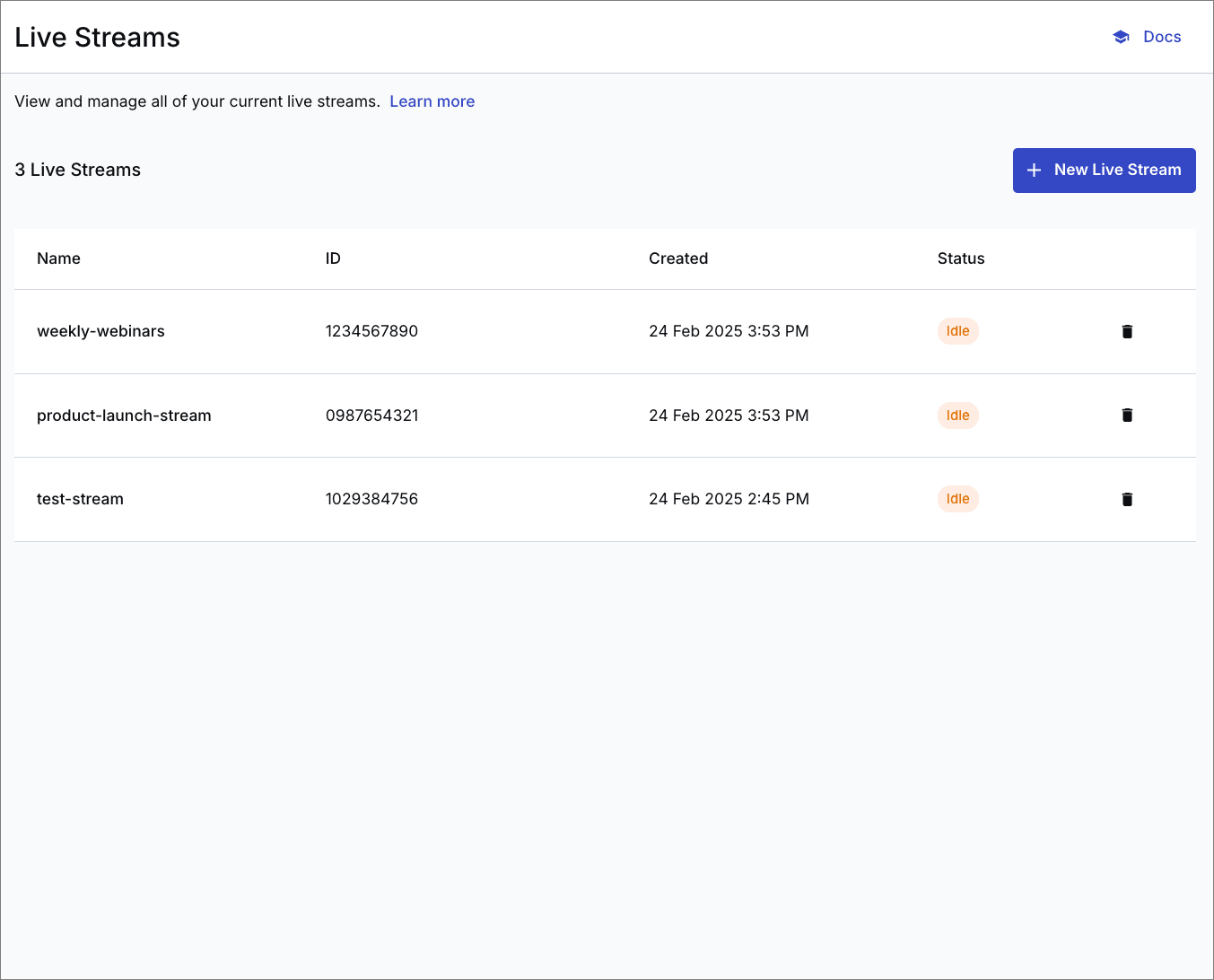
To start streaming your video content to your users, begin by creating a new live stream. You can do this directly from the Video > Live Streams page of the console. Provide a name for your live stream and optionally adjust the idle timeout and max runtime values.
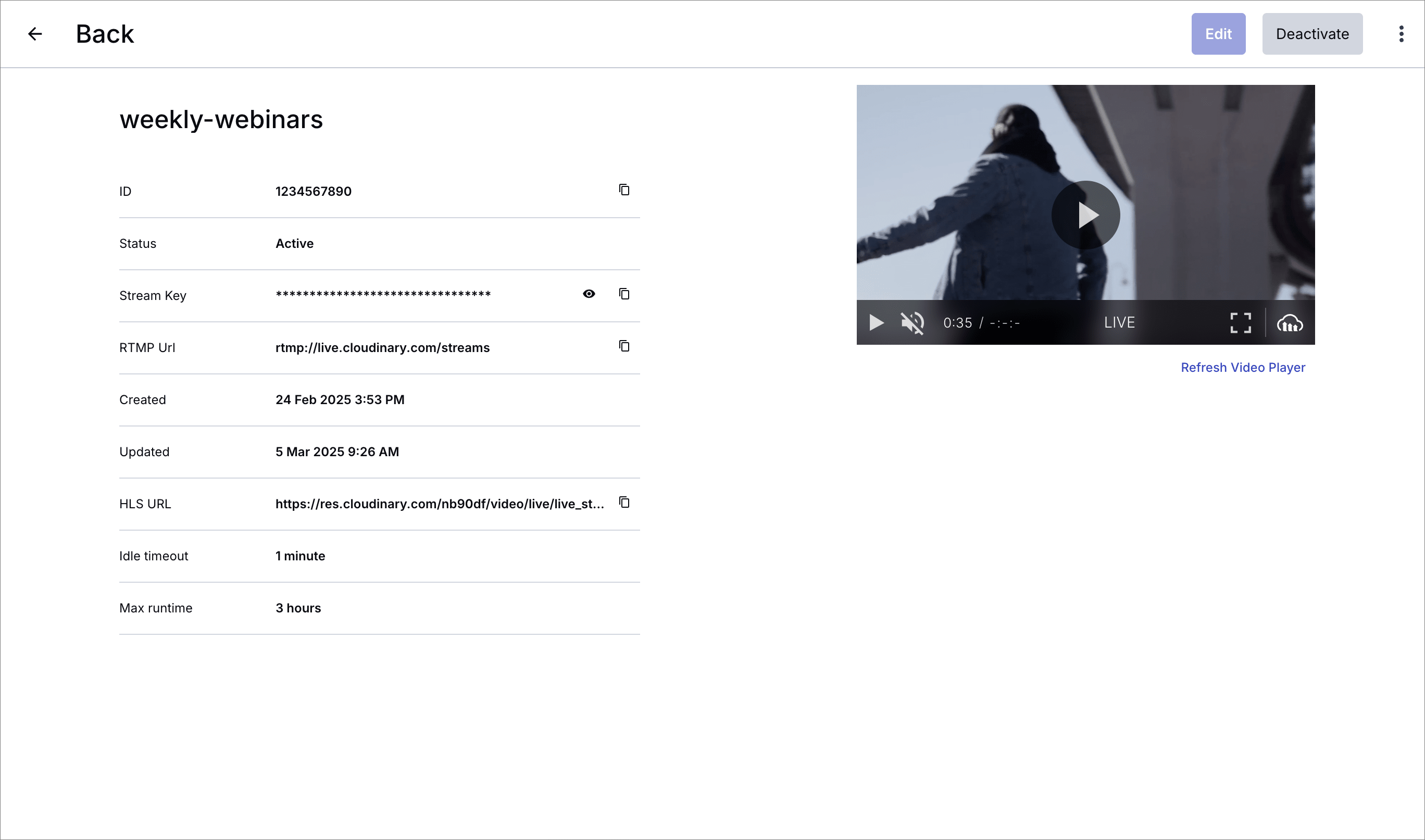
Once created, you can access the details of your new live stream. Here, you can find the key information about your stream to start streaming to your users:
- RTMP URL and Stream Key - Use both of these to give your streaming software the details for starting the streaming input. Once you start your streaming input the stream becomes active, alternatively you can activate your stream manually from the stream details page.
- HLS URL - This is the output URL for your video stream. Use this URL with your video player to display your live stream to your users. The Cloudinary Video Player supports the live stream type natively.
An individual live stream gets created in an idle state and you can activate or idle a live stream manually. Your stream key is permanent, enabling you to reuse your stream for regular events, such as weekly webinars, without the need to create a new live stream each time.
For more advanced configuration of your outputs, such as simulcasts use the Live Streaming API.
Monitoring and engagement
Opening a specific stream from the Live Streams page in the Cloudinary Console provides a comprehensive overview of your live stream, including status, duration, and engagement metrics. This enables you to monitor the health of your stream and track metrics such as the number of viewers, the average view duration, and the number of concurrent viewers.

Closed captions
Cloudinary's live streaming supports embedded closed captions, enabling real-time accessibility for your live video content. Closed captions are sent via the RTMP input stream and delivered through the HLS output, allowing viewers to select captions in compatible video players, including the Cloudinary Video Player.
How it works
Closed captions are embedded directly into your RTMP stream using caption channels. When you create or update a live stream, you define the caption channels along with their language information. During the live broadcast, your streaming software (such as OBS with a closed captions plugin) injects the caption data into the RTMP stream, which Cloudinary then passes through to the HLS output.
Configuring captions
To enable closed captions, include the embedded_captions parameter when creating or updating a live stream. The embedded_captions parameter accepts an array of up to 4 caption channel objects.
Each caption channel object includes:
| Parameter | Type | Description |
|---|---|---|
caption_channel |
Integer | The caption channel number (1-4). Must be unique within the stream. |
language_code |
String | The language code in ISO 639-2 format (e.g., eng, spa, fra). |
language_description |
String | A human-readable description of the language (e.g., English, Spanish). Maximum 50 characters. |
Example: Create a live stream with captions
Example: Multiple caption languages
Sending captions from your streaming software
To send closed captions during a live broadcast, you need streaming software that supports CEA-608/708 caption injection over RTMP. One common setup uses OBS Studio with a closed captions plugin:
- Install a closed captions plugin for OBS, such as Google's Cloud Speech Recognition plugin.
- Configure the plugin with the appropriate language settings.
- Start your live stream to the Cloudinary RTMP input URI with the plugin enabled.
- The plugin converts speech to text in real time and injects the captions into the RTMP stream.
Viewing captions
Once captions are configured and your stream is active, viewers can select and view captions using any HLS player that supports embedded caption tracks. The Cloudinary Video Player displays caption options automatically when caption tracks are detected in the stream.
Live Streaming API
If you're looking to programmatically create and manage your live streams, you can integrate the live streaming API. View the Live Streaming API reference for full details on endpoints and parameters.
Create a live stream
To create a new live stream, make a POST request to the /live_streams endpoint with the relevant parameters in the request body. It must include the input parameter with type "rtmp", and in most cases will at least include a name.
You can also define optional timing options and embedded captions for accessibility. For all options, see Create a new live stream in the Live Streaming API reference.
The new stream will be created in an idle state. To activate it, start streaming to the input uri or manually activate.
Example Request
Example Response
The response includes details about the input and outputs. The output includes details of the hls output that you can use to stream to your users via a relevant video player, such as the Cloudinary Video Player as well as an additional archive output that gets stored as a standard video asset in your Cloudinary product environment.
Start streaming
To start streaming to a live stream, you need to use an RTMP client such as OBS and stream to the input.uri provided in the live stream response. The input.stream_key can be used as the stream key for the RTMP client. Once you begin streaming to the input URI, the live stream will be activated and the output.
Manually activate a live stream
In some cases, you may want to manually activate a live stream before starting to stream to it. This can be useful if you want to ensure that the stream is ready to receive data before actually starting the stream.
To manually activate a live stream, make a POST request to the /live_streams/{liveStreamId}/activate endpoint.
Example Request
Example Response
Stop streaming
To stop streaming, simply stop the RTMP client from sending data. The live stream will automatically idle after the configured idle_timeout_sec.
You can also manually idle the live stream by making a POST request to the /live_streams/{liveStreamId}/idle endpoint.
idle_timeout_sec option to end your stream results in a black screen for the duration of the defined timeout period (as this timeout also enables you to reconnect before the timeout expires). Example Request
Delete a live stream
To delete a live stream, make a DELETE request to the /live_streams/{liveStreamId} endpoint.
Example Request
Define or update outputs
Different outputs can be used to stream your live video to various platforms or to create archives of the stream.
An hls and an archive output are automatically defined when you create a live stream. After you've created the stream and before activating it, you can modify the auto-generated values for those outputs or create additional outputs.
- To update the hls or archive outputs, make a PATCH request to /live_streams/{liveStreamId}/outputs/{liveStreamOutputId}
- To define new outputs for a live stream, make a POST request to /live_streams/{liveStreamId}/outputs
Supported output types:
- hls: You can use the hls output to deliver your stream via a relevant video player, such as the Cloudinary Video Player. Only one HLS output can be defined per stream. PATCH update the hls output if you want to modify the default definition that was set during the stream creation.
- archive: Archive outputs are stored as standard video assets in your Cloudinary product environment with the specified public ID. Only one archive output can be defined per stream. PATCH update the archive output if you want to modify the default definition that was set during the stream creation.
- simulcast: Simulcast outputs are not generated by default when creating a stream, but you can optionally create multiple simulcast outputs, each with a unique URI. Use simulcasts when you want to forward your stream to another streaming platform such as Youtube.
Example Request
Error
Rate this page:
