 Ask AI
DAM Apps
Last updated: Oct-18-2026
DAM Apps offer additional features that customize and enhance the Media Library's core product. Your administrator can enable the apps that are relevant to your workflow from available options within your product environment.
Explore the detailed list of available apps below to determine which ones would be beneficial for you. For instructions for your administrator on enabling the apps, see DAM Apps.
Once your administrator enables the desired apps, you can access them by selecting the assets you want to apply the app's actions to, then clicking the corresponding app from the options menu, accessible via the (3-dots) option menu in the assets toolbar.
Contact Sheet
This app enables you to generate contact sheets, presenting images in grid layouts of your choice. You can apply transformation presets (referred to as templates now) to your images, then easily download the modified assets or print the contact sheet.
See the app in action:

Download Transformed Assets
Use this app to download a ZIP file containing multiple assets with a selected transformation preset (referred to as templates now) applied.
See the app in action:

Export Asset Metadata
Use this app to download a CSV file containing selected metadata and delivery URLs of multiple assets.
See the app in action:

Export to Excel
Use this app to export the metadata of selected assets, including public ID, format, tags, contextual metadata, and structured metadata, to an .xlsx file.

Klaviyo Connect
Use this app to save Cloudinary images, videos, and dynamic Cloudinary templates to Klaviyo as reusable Universal Content blocks, which you can then add to your Klaviyo campaigns and flows. You can optionally apply a transformation before saving, and re-rendering an asset in Cloudinary automatically updates every email that references it.
Select the assets you want to use, then choose Use in Klaviyo from the assets toolbar.
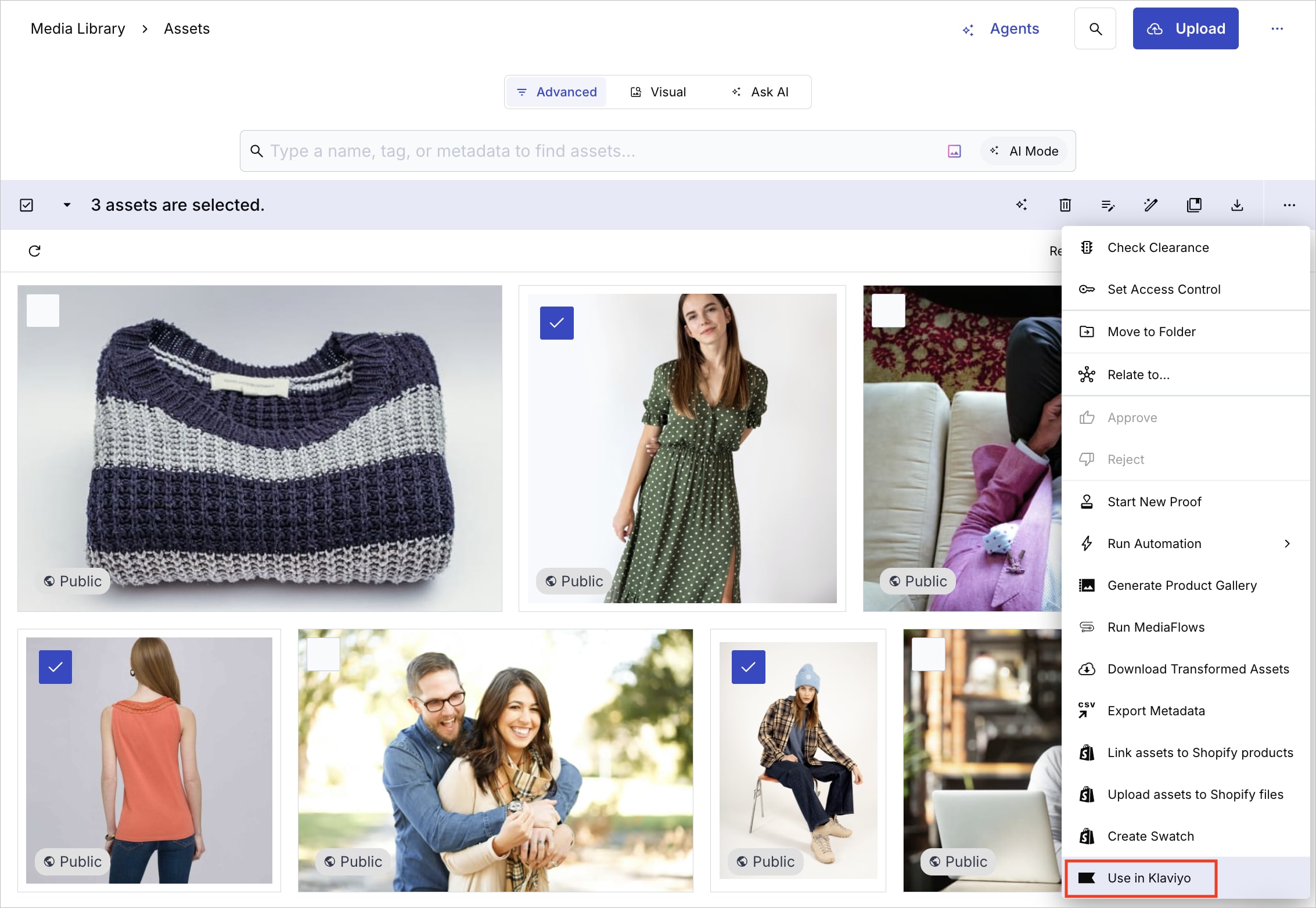
For full details, including how to personalize dynamic Cloudinary templates with Klaviyo profile and event data, see the Klaviyo integration.
MediaFlows
Run MediaFlows to automate recurring media processing routines and workflows without writing code. For more information on building MediaFlows, see MediaFlows.
See the app in action:

Product Gallery
Use this app to generate a Product Gallery demo page featuring images, videos, and spinsets, and automatically generate the embed code for seamless integration.
See the app in action:

Shopify AssetLink
Use this app to link assets in your Media Library to products in your Shopify stores, based on metadata matching. You can also upload assets to your store files and create AI-generated swatches, and review where your assets are already linked in Shopify.
Select the assets you want to sync, then choose the AssetLink action you want to perform from the assets toolbar.

For full details, see the Shopify AssetLink User Guide.
Video Player Studio
Use this app to create a demo page showcasing your video using Cloudinary's Video Player, where you can preview it with various settings applied. Additionally, the app generates the embed code for easy integration.
See the app in action:

Error
Rate this page:
